The figure below shows what the VidTape program main window looks like.
There are five main components to the main window. The menu bar at the top lets
you carry out all of the actions that can be performed from the main window.
The Toolbar allows you to perform some of the commands without using the menu.
The rest of the components show different parts of your tape database.
|
|
|
|
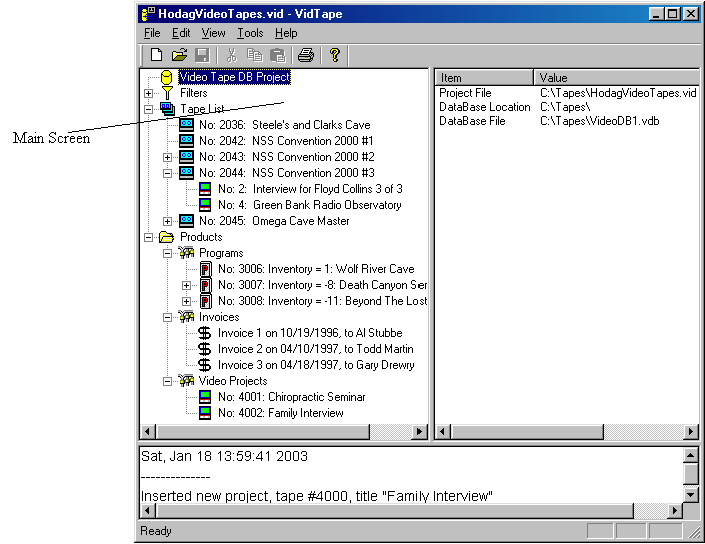
The left hand window is called the 'tree' view. It allows you to see your list of tapes, products and projects in an expanded view, or collapsed view. You can select a list or an individual item in the tree view by clicking on it with the mouse. Details on the selected item show up on the right. The right hand window shows a summary of the highlighted item in the tree view. The last portion is the log window at the bottom. This log will show various actions as you work with the tape database.
If a line in the tree view has a plus sign to it's left, you can click on the plus sign and expand the tree, showing data that relates to that line. The plus sign turns to a dash. The figure above shows the tape list expanded, showing the individual tapes. One of the tapes is expanded, showing the scenes associated with that tape.
Right hand View of Project data
the figure above shows the first tree item ("Video Tape DB Project") highlighted. The right hand view shows specific information about your database and video tape project files. The project file (*.vid) contains information pertaining to this particular project. It stores the name and location of your database, options that you have selected, filters, and past search strings. This file is created when you make a new project (see the 'The Menu' section, under File/New).
The database location and database file show where your logged tapes, scenes, programs, invoices, and projects are stored. You can change the database name and location from within your project. (See the 'The Menu' section, under File/Open database).
Tapes and Scenes
Selecting the Tape list
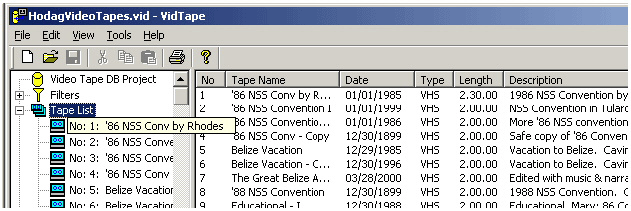
When the tape list in the tree view is highlighted, the right hand view shows the list of tapes, along with some of the data associated with the each tape. The figure below shows the tape list.
Selecting a single tape
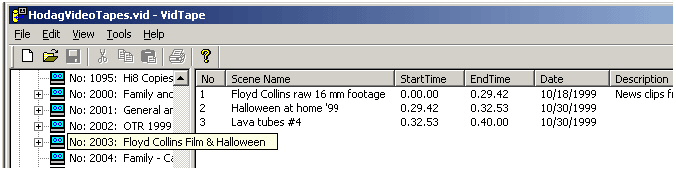
When a single tape is highlighted, the right hand view shows the all the scenes that are on that tape. The next figure shows the details.
Selecting a single scene
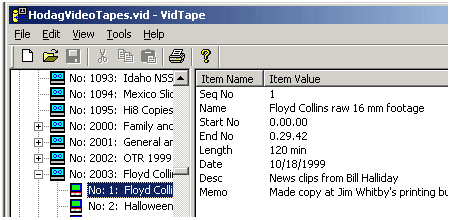
You probably get the idea by now, but when a single scene is highlighted, the right hand view shows more details about the scene. The figure below shows the details.